Docs
Get going with Shuriken.
Short guides, in the order you'll meet them. Most link to the page with the whole story, and the glossary says what each word means.
Getting started#
Install the app on the computer where your code lives. Your phone and any browser follow along.
-
Create your account.
Free includes 2 sources and 2 linked devices. Browsers don't count as devices, and no card is needed.
-
Install the app.
Download Shuriken for macOS, Windows or Linux and sign in with the same account.
-
Open a project.
Pick a folder with your code and start a chat with Claude Code, Codex or another coding agent.
-
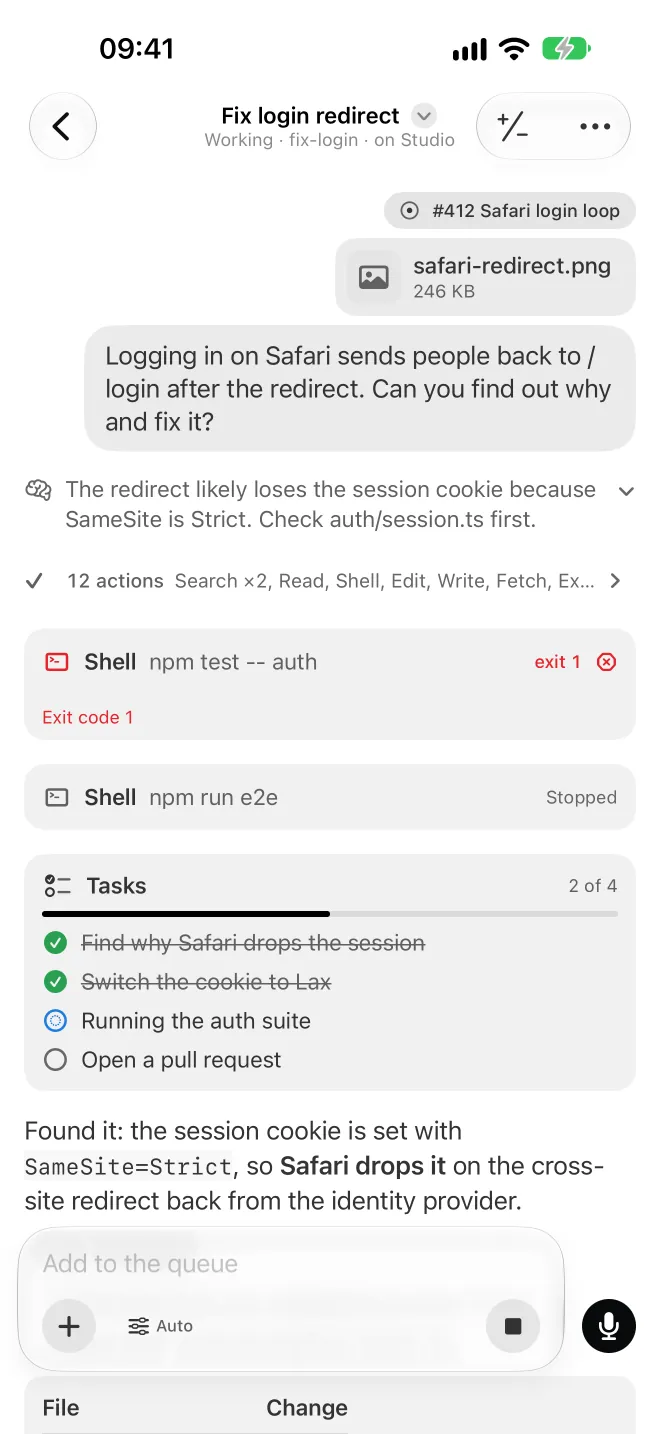
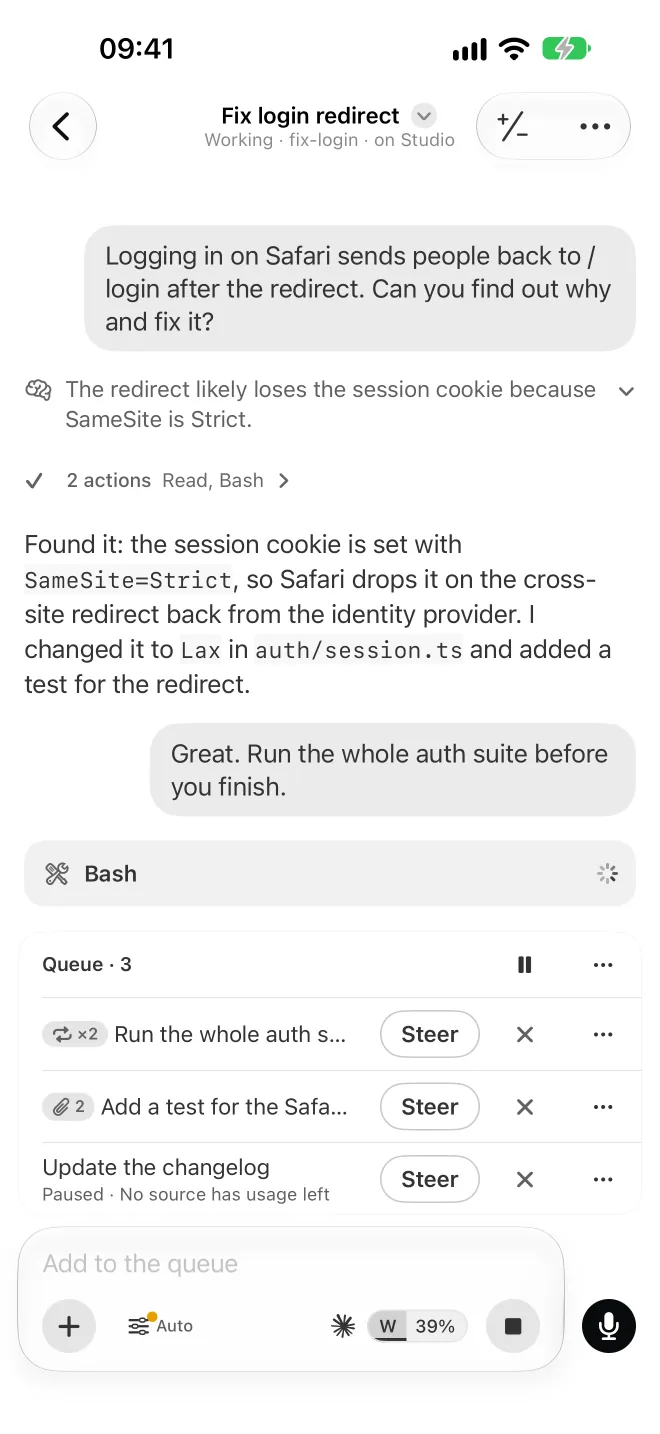
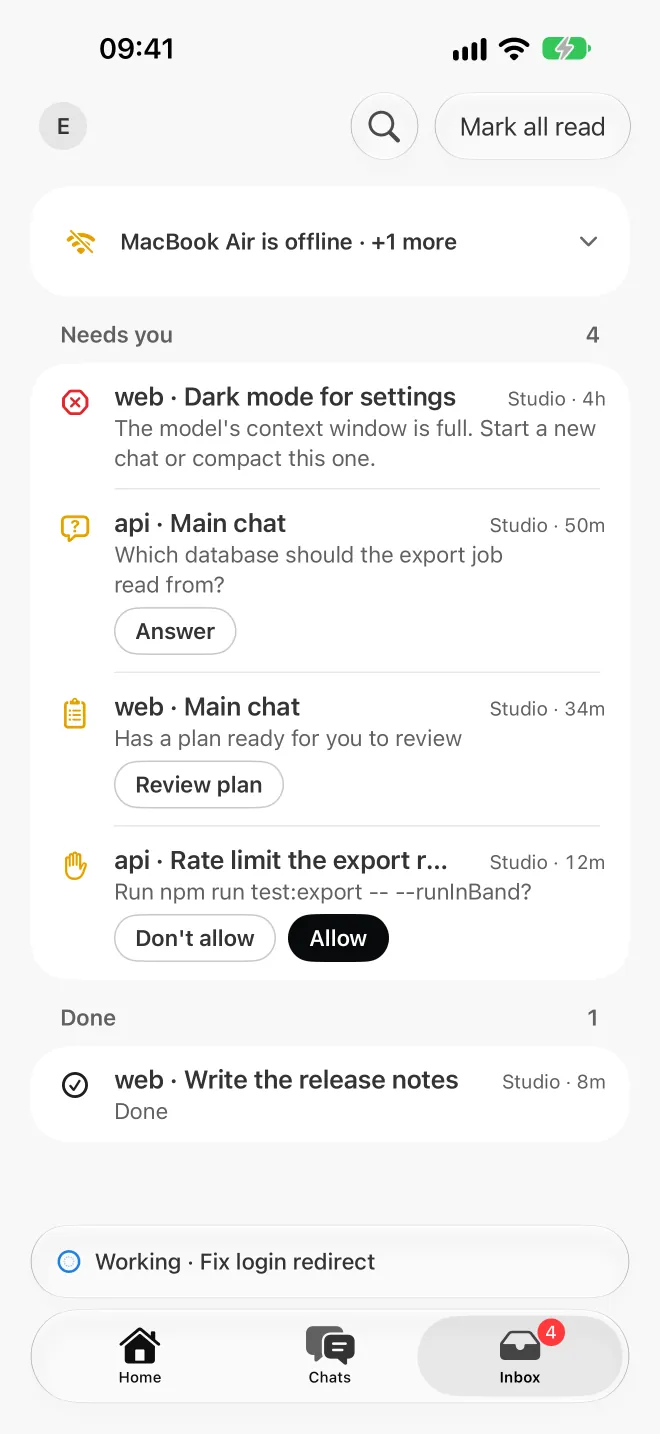
Follow it anywhere.
Open app.shuriken.sh on your phone to see every chat and the queue live. Native iPhone and Android apps, with a push when an agent needs you, are coming to the App Store and Google Play.
Web app and sign-in#
Use Shuriken in any browser at app.shuriken.sh. Your agents keep running on your own computers.
-
Open app.shuriken.sh.
Sign in once and you're signed in on the website and the web app alike. Signing out of one signs you out of both.
-
Answer one question.
Is this your computer? Yes keeps this browser signed in. No signs it out after 2 hours without use.
-
Change it later.
Settings › Devices shows each browser as My computer or Not my computer, and signs any device out at once.
Home#
Where the app opens: your projects, and only what needs you.
-
Start at the top.
One Get started row: add a computer or server, sign in a source and, on Free, see what Pro adds. Its × hides it for good.
-
Open a project.
Up to seven rows of project cards, the most recently used first, and More for the rest. A tip sits under them.
-
Catch renewals.
When a subscription renews within 3 days, a card says so. Acknowledge hides it until the next period.
-
See what it's worth.
At the foot: what your subscriptions' last 30 days would cost at API prices, what they cost you, and the value of one over the other. Then your sources and devices.

Sources and switching#
A source is one of your subscriptions, API keys or endpoints. Add every one you have, and chats move when one runs low.
-
Add your sources.
In Settings › Sources, press Add source and pick an agent: sign in to its subscription in your browser, paste an API key, or add an endpoint. More agents installs the ones this device doesn't have yet.
-
Read the table.
Each row shows every limit its provider has, like the 5-hour and the weekly bar. An API key shows its balance where the provider tells it, and a signed-out source has Sign in right in its row.
-
Set when to switch.
Under the table, Switch settings decide when chats leave a source: Switch at anywhere from 50% to 100% of a window, 99% until you change it, in Rotation or Distribute mode.
-
Keep working.
When the source in use gets there, your chats hot swap to the source with the most room. Each switch leaves a card in the chat and a row in Recent switches.

Free limit resets#
Claude and Codex sometimes give an account a free limit reset. Shuriken spots it on your sources, on every plan, so none expires unused.
-
See it on Home.
A card at the top of Home and the Dashboard says which sources have a free reset waiting, and a notification tells you when a new one arrives.
-
Check the countdown.
View details lists each reset: what it refills (the 5-hour limit, the weekly one or both) and a live countdown to when it expires.
-
Use it in time.
You use it in Claude's usage settings or in Codex. Shuriken also emails you once per reset; turn that off in Settings › Notifications › Email.

Top bar readings#
The top of the desktop and web app shows how your project's computer is doing and how much usage is left.
-
Read the device.
Memory, CPU, free disk space, battery, keep-awake and internet of the open project's computer. Click them for its busiest processes.
-
Read your fuel.
Next to each chat's provider, one bar shows the limit closest to running out, by its letter, with the fuel left inside, like W 92 for the week. Click it for every limit and when each resets. While your sources are being read it shows an outline, never an empty bar.
-
Choose what shows.
In Settings › General › Top bar: All, Only when high, or Off.
-
Hear the charger.
Pull a laptop's charger and Shuriken plays a short sound, even in the background. Turn it off in Settings › Notifications.

Voice#
Talk instead of typing. By default your voice is turned into text on your own computer, by NVIDIA Parakeet.
-
Press the mic.
Dictate into any chat. The local model downloads by itself the first time and works offline after that.
-
Or bring your own key.
Prefer a live speech provider? Add your own ElevenLabs, AssemblyAI, Deepgram, Speechmatics or OpenAI key in Settings › Dictation. Silence is never sent.
-
Watch the status.
A mic in the top bar says Ready, Loading or Needs attention, with one Fix button when something is wrong. A model that stops restarts by itself.

MCP servers#
One list of MCP servers that your chats in Claude Code, Codex, Gemini CLI and more all get.
-
Add a server.
In Settings › Extensions › MCP servers, pick a ready-made connector, or add any server by its address or command.
-
Choose its projects.
All projects, or just the ones that need it.
-
Sign in once.
Approve it in your browser one time. Switching accounts never asks again.

Shared projects#
Bring someone into one of your projects.
Shared projects are an opt-in beta in this release. You and the person you share with both switch on Shared projects (beta) in Settings › Projects. Sharing a project needs Pro or Founding; joining one works on any plan.
-
Invite to a project.
In beta: you both turn on Shared projects (beta) in Settings › Projects, then you invite someone to one project by their Shuriken email. They work in your chats on your computer, with the same access you have, so share only with people you trust fully.
Install on a server#
Run agents on a machine with no screen, and drive them from any device.
-
Add a device.
In the app, open Settings › Devices › Add device and choose A server.
-
Pick its system.
Linux, macOS or Windows. The app gives you that system's steps, made for your account and valid for an hour.
-
It joins by itself.
The server signs in on its own, named after the machine, and shows up in your devices.

Plans#
Free, Pro and Founding. None of them sells model usage: Shuriken puts the plans and keys you already pay for to work.
-
Free.
2 sources and 2 linked devices, with no card and no end date. Browsers don't count as devices.
-
Pro.
Unlimited sources and devices, and a few features that are still in beta inside the app. Upgrade in the app opens the order page, already signed in.
-
Founding.
Everyone who signed up before launch gets Pro at no charge, for as long as Shuriken runs.
-
A gift.
Were you given Pro? Nothing is ever charged. When the gift ends, your account moves to Free, unless you ordered Pro.
What's new#
After an update, Shuriken tells you once what changed.
-
See it once.
The first time one of your devices runs a new version, a pop-up shows what's new. Got it closes it on every device.
-
Read everything.
See everything new opens the full list of changes.
Still stuck?
The FAQ answers the common questions, the security page says where your data goes, and the status page says whether the cloud is up.