Why Shuriken has a Rest screen
When you switch away from Shuriken, its Rest screen covers the app with the time and where each project stands. Your chats keep running underneath.

Contents
Shuriken's Rest screen covers the app with the time and where each project stands, while every chat keeps running underneath. By default the desktop app rests by itself 7 seconds after you switch to another app or 10 seconds after your last input, and at once when your screen goes dark. We built it after catching ourselves watching agents work instead of leaving them to it.
When we started running a handful of agents at once, we spent a silly amount of time watching them. Text streams in, a test runs, a diff appears, and you sit there like it's a fireplace. It feels productive and it isn't. Agents do their part once you've written a good prompt and queued the next two; yours is to go and do something a human is better at. The hard part is actually leaving, so we gave Shuriken a screen that makes leaving easy. We call it Rest mode, or Rest for short.
What Rest is#
Rest looks like a lock screen. The time is large in the middle, with small glances at your projects around it, enough to tell whether anything needs you and not enough to pull you back in.
What it leaves out matters as much. There's no streaming text, no scrolling log, nothing moving for the sake of moving. Going to rest, the window blurs and fades out over 280 milliseconds, then stops drawing what's underneath it (content-visibility: hidden). Since 2.2 (10 October) Rest also switches the app's animations and transitions off instead of pausing them. That is kinder to your battery as well as your attention.
How you get there, and back#
Six things start it:
- Rest mode in the command menu (⌘K);
- View › Rest Mode;
- ⌘⇧S (Ctrl+Shift+S on Windows and Linux);
- leaving the desktop app's window in the background for 7 seconds;
- 10 seconds in the desktop app without a click, a key or a move of the mouse;
- the screen going dark, with the brightness at zero or the screen locked.
The two timed ones belong to Automatic idle screen in Settings › General, which is on by default; turn it off and Rest only starts when you ask for it or the screen goes dark.
After you ask for it, there are 5 seconds when switching windows or pressing a key won't wake it, so you can Alt-Tab away without bouncing straight back. We picked 7 seconds for the background case because a glance at another app isn't leaving. A dark screen outranks everything: Rest starts at once and stays until the screen comes back. A browser tab never rests on its own, since a browser doesn't tell a page whether its window has focus.
Coming back is a click, a key press, or switching back to the window. Moving the mouse doesn't wake it, so bumping the desk or brushing the trackpad doesn't throw you back into the chat stream.
Redrawn in 1.2#
The first Rest worked and was a little busy. Shuriken 1.2 came out on 5 October with three changes to it:
- one centred axis, the time in the middle and the glances around it;
- a layout that fits a half-screen window and a phone held sideways;
- no reading that nobody took, because a number we never measured is better left off than shown as a confident zero.
The same release brought Import from Claude Code and Codex, so your projects came with you (Claude Code and Codex in one project).
Rest in 4.0, on 19 October#
4.0 gave Rest a clearer job: the time and where each project stands, so one look tells you which projects are busy and which are waiting on you, with the battery level in the top bar. It also fixed two small annoyances. A lone ⌘ or Alt key no longer wakes it (you were probably reaching for a shortcut in another app), and moving the mouse keeps the window awake while you're actually at it. 4.0's bigger news was a start screen with every project as a card.
Rest works because notifications do#
A calm screen only works if you trust it to call you back. When a chat needs you (an approval, a question, finished work), Shuriken sends a notification on your computer, so you get called in instead of checking in. How those look is in a notification when a chat needs you.
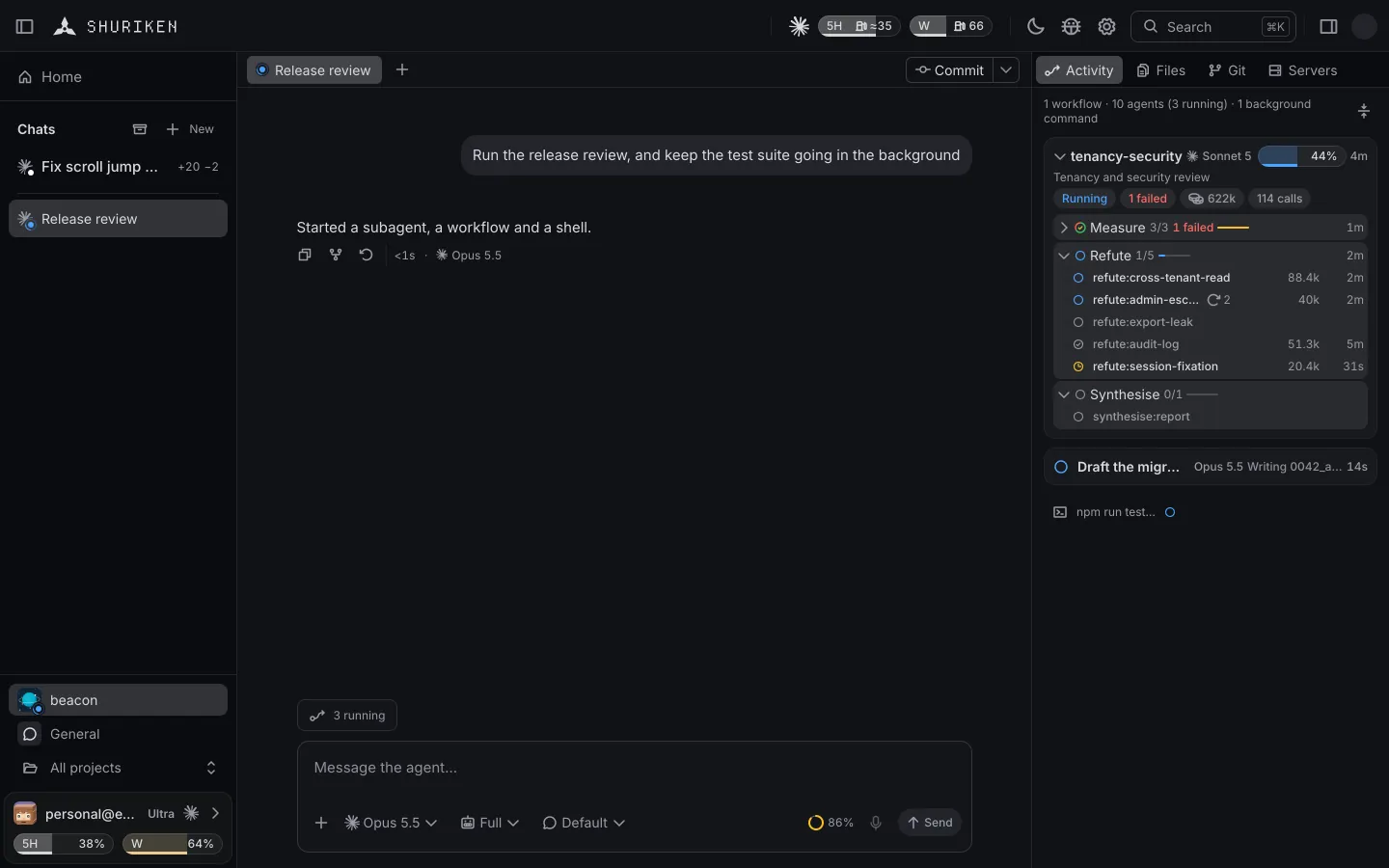
When you do come back, Activity shows what ran while you were away: subagents, workflow phases, background commands, with a digest of what happened.
And when you really leave#
Rest is about the screen. If you're leaving the computer itself, that's a different feature with a different name: Heroin mode. Yes, really. It keeps the computers you pick awake, and on a laptop it keeps running with the lid closed, where the machine allows it. Close the lid, leave it on the desk, and the agents keep working.
The name is a joke. The lid-closed part is not.
Try it#
Start a few chats, queue the next steps, and press ⌘⇧S. Then go make a coffee. Try Shuriken if you haven't yet.
Frequently asked questions
Does Rest pause my agents?
No. Rest only covers the window. Every chat, queue and background command keeps running underneath it.
How do I start Rest myself?
Choose Rest mode from the command menu (⌘K), use View › Rest Mode, or press ⌘⇧S (Ctrl+Shift+S on Windows and Linux). The desktop app also rests on its own when you leave it, and at once when the screen goes dark.
How do I get out of Rest?
Click or press a key. Moving the mouse doesn't wake it, so you can nudge the pointer without losing the calm screen.
Does Rest keep my Mac awake?
No. Rest is about the screen. Whether the computer stays awake is the Keep awake setting on its device page (a computer signed in to Shuriken starts on Always), and Heroin mode keeps a laptop working with the lid closed.


